Last updated · Written and tested by The PixelArtFromPhoto team, who build and maintain this tool.
This free blur image tool softens any part of a photo with a smooth, Gaussian-style blur. Use it to blur faces in a photo before you post it, hide a house number or a child's school badge, or blur a whole image for a soft background or a wallpaper.
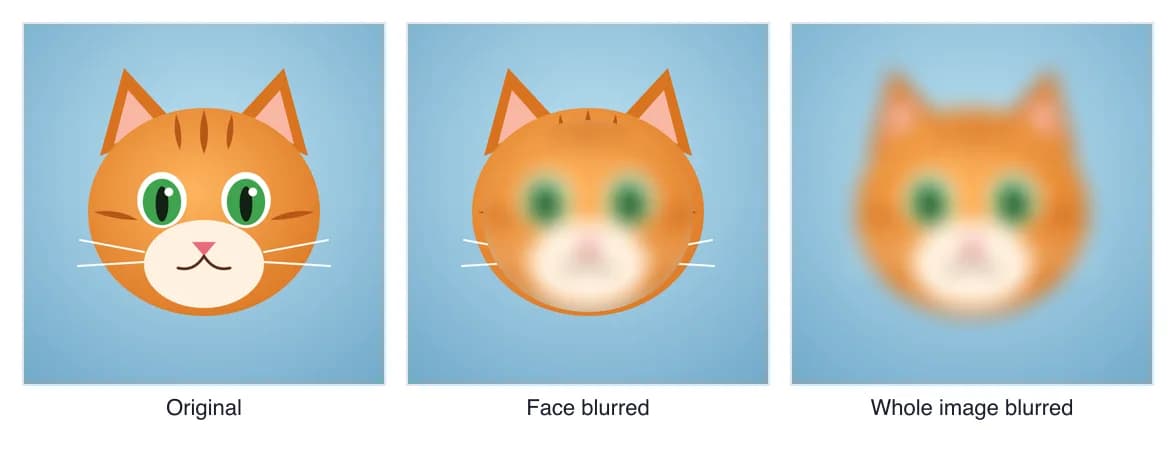
How to blur an image
- Add the photo. Drop it on the box or choose it on your phone. JPG, PNG and WebP work.
- Choose where to blur. Drag over each area, click Find faces automatically, or switch to Whole image.
- Set the blur amount. The amount scales with each area, so a small face and a large background get a similar look.
- Download as PNG, JPG or WebP. The new file does not carry the original EXIF data, such as GPS location.
Blur faces in a photo automatically
Posting a group photo, a street scene or a picture from a school event? Find faces automatically uses an on-device face detector and checks both the whole photo and zoomed-in tiles, so it also catches small faces in the background. Use ovals for faces: they look more natural than rectangles and cover hair and chin. Always look over the result, since faces turned away or partly covered may be missed.
Blur part of an image
Common things people blur before sharing a photo:
- Licence plates and house numbers in car or property photos.
- Names, emails and order numbers in screenshots (a solid bar is safer for these).
- Other people's faces in travel and event photos.
- Brand logos in product shots and videos thumbnails.
- Documents, screens and whiteboards in the background.
Blur or pixelate?
Blur looks natural and is better for backgrounds and crowds. Pixelation looks deliberate, the way TV and news footage hides faces, and large blocks remove detail more completely. For anything that must never be readable, use the solid bar option in either tool. Want the retro look instead of hiding something? Try the photo to pixel art converter.
How strong should the blur be?
For faces, raise the amount until you can no longer make out the eyes and mouth, usually 40% or more. For text, blur is the weakest option: short words and numbers can sometimes be guessed from a light blur, so cover them with a bar. If you are blurring for privacy, also crop out anything identifying that is outside the blurred area.
Blur image FAQ
How do I blur part of an image?
Open the image above, keep Selected areas on and drag a box or oval over the part to blur. Add more areas if you need them, set the blur amount, then download. The rest of the photo stays sharp.
How do I blur faces in a photo?
Click Find faces automatically. Every face the detector finds gets a blurred oval. Check the photo, then drag extra ovals over any face it missed, such as people in profile or far in the background.
How do I blur the background of a photo?
Switch to Whole image to blur everything. To keep a subject sharp, the quickest way is to blur the whole image here and layer it under the original in a photo editor. Portrait mode on most phones also blurs backgrounds when you take the photo.
Is blur safe for hiding sensitive information?
Strong blur makes faces and plates hard to recognise, but light blur on text can sometimes be read or reversed. For passwords, card numbers and addresses, use the Solid bar effect instead.
Does this blur tool upload my photo?
No. The blur is calculated in your browser on your device, and the download is created there too. Your photo is never sent to a server.
Will the blurred image lose quality?
Only the blurred areas change. The rest of the photo keeps its full resolution (up to 4096 px on the long side). Save as PNG for no extra compression, or JPG for a smaller file.